
Manual
Everything RoadtripRadar does, in the order you'll probably need it.
Saving places
On the Map tab, tap +. A crosshair appears in the middle of the map: move the map until the crosshair is on the place, and tap Use this spot. The app looks up the address and suggests a name. Change it if you like, choose a category and any lists, and save.
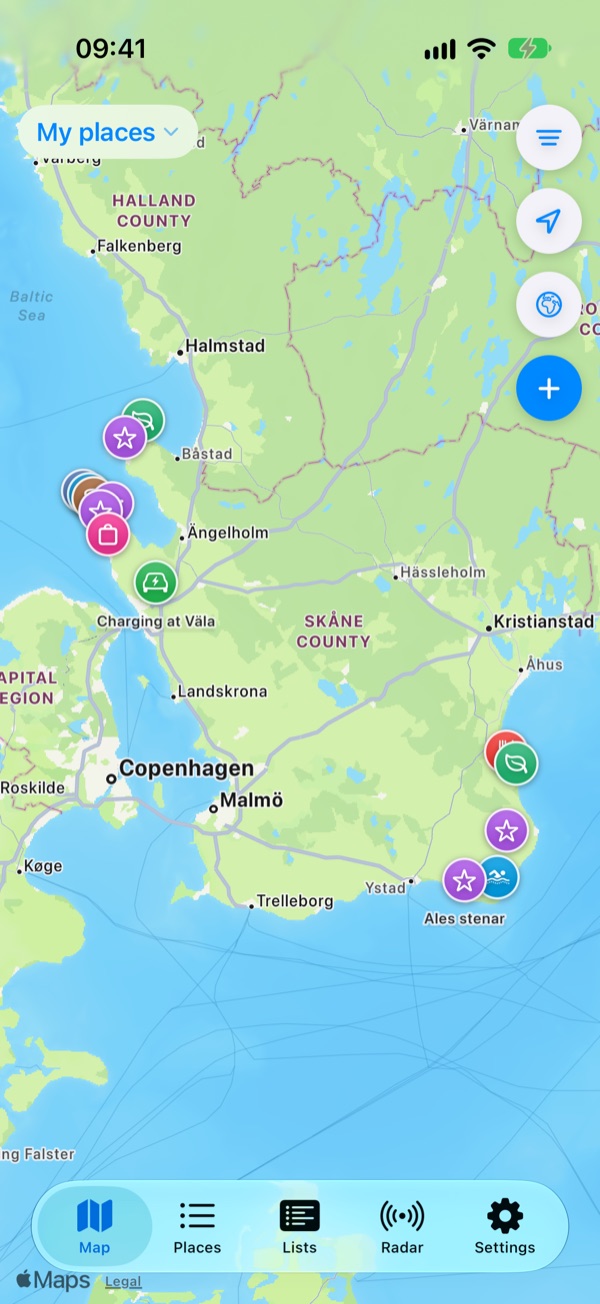
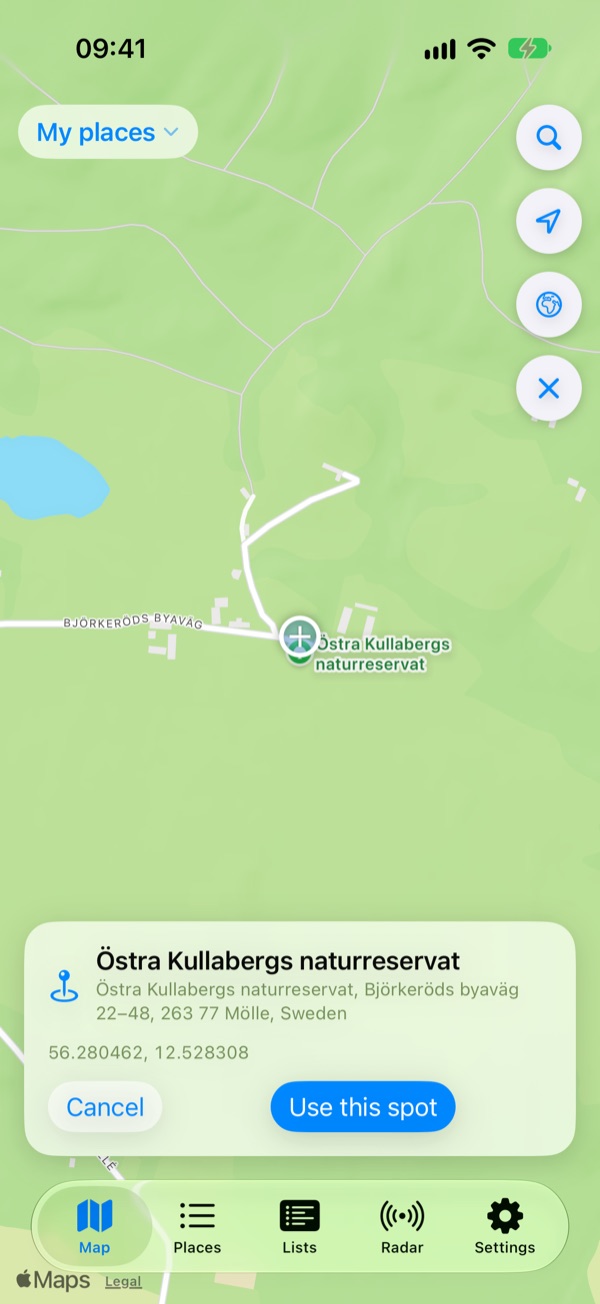
While placing, the filter button turns into a search button, so you can jump to a town or an address first.
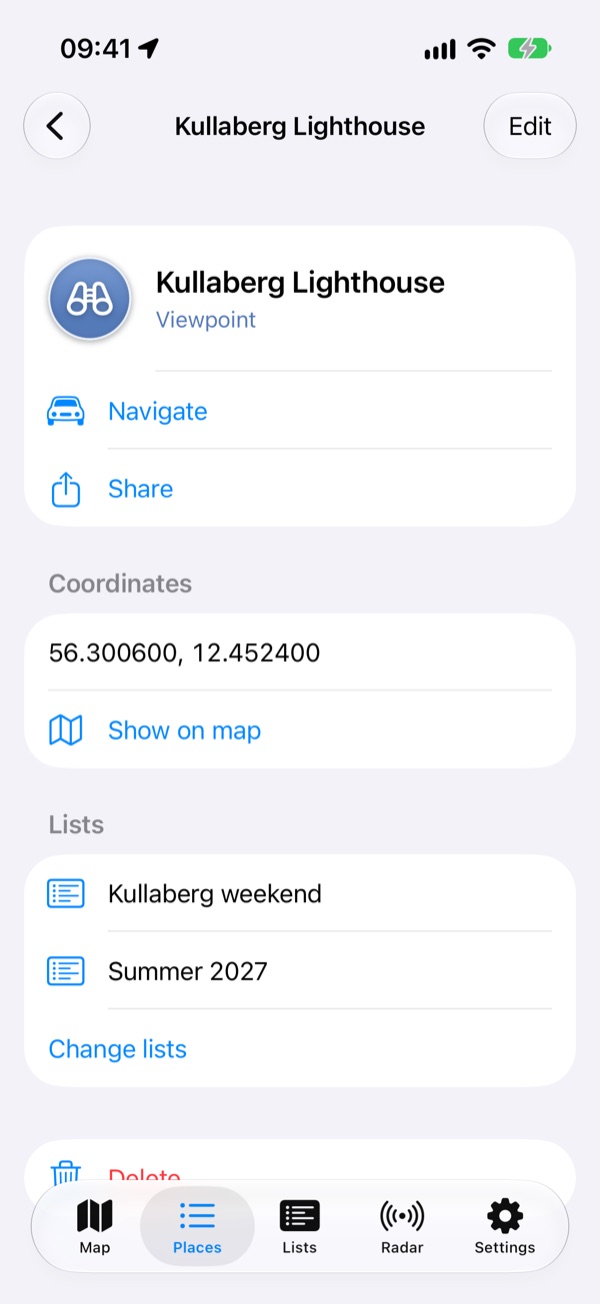
Tap a pin to see the place. From there you can navigate to it with Apple Maps or Google Maps, edit it, share it, add it to lists, or delete it. Show on map takes you to the place on the map from any tab.
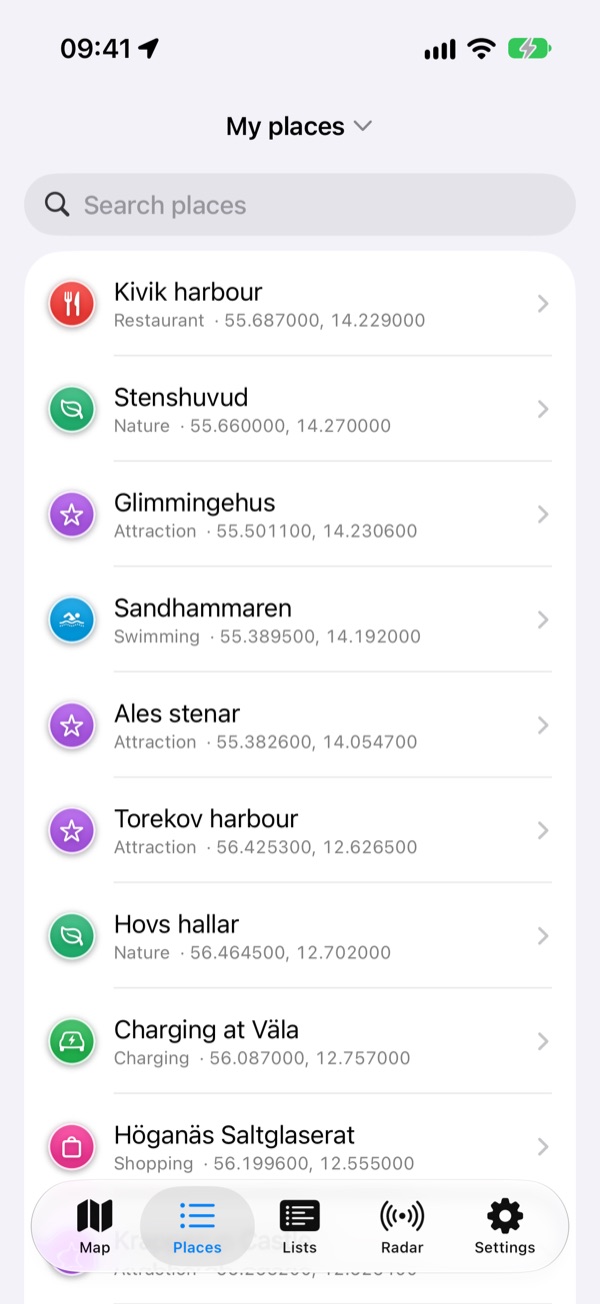
The Places tab lists every place in the collection, newest first, and you can search by name or category.
Per-place alert distance
In a place's editor you can give it its own trigger distance or time, for example a farm shop you'd only detour 5 minutes for. Places without one use the radar's settings.
Sharing a map link into the app
Found a place in Apple Maps or Google Maps? Use the share button there and choose RoadtripRadar. A small editor opens with the name and position filled in. Choose a category and lists, and save.
Some links only point at a stretch of map, not a pin. Then the app says "This link points at a map view, not a place" and asks you to place the pin yourself, because saving the middle of the map can put a place a kilometre away from where it really is.
If a link can't be read straight away, for example with no signal, it waits under Shared links and the app tries again.
Categories and lists
Every place has one category, such as Café, Viewpoint or Swimming. Sixteen are built in, each with its own symbol and colour on the map. You can add your own under Settings → Your categories. Deleting one of your own categories moves its places to Uncategorized; it never deletes them.
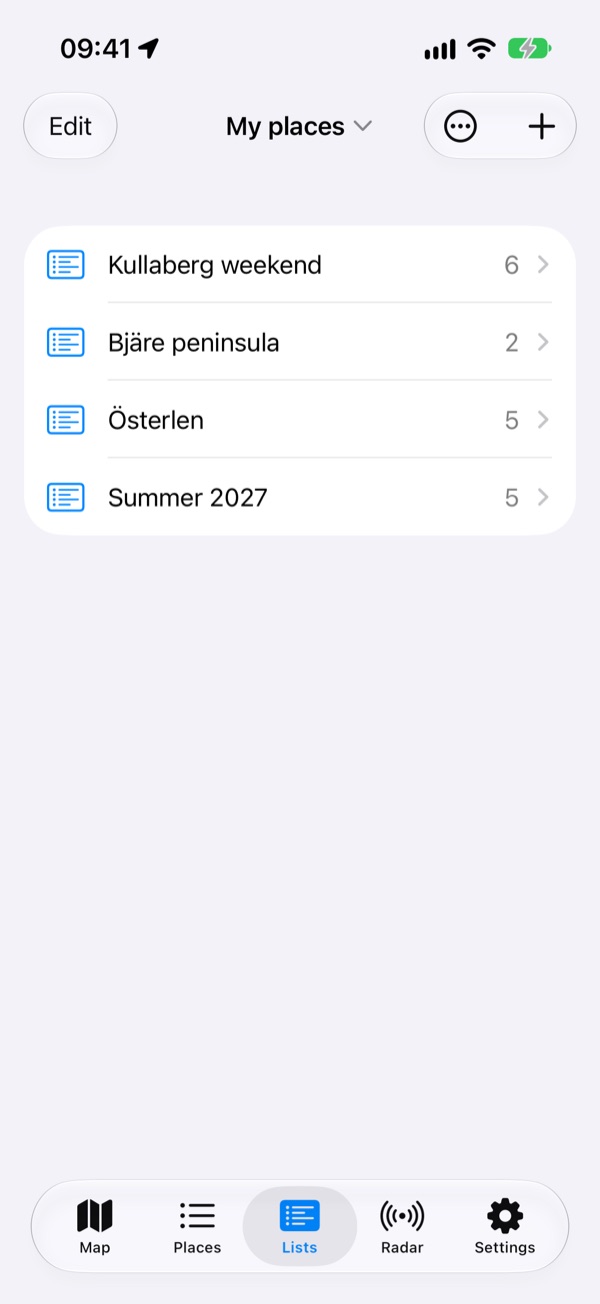
A list is any group of places you like, such as "Summer 2027" or "Ice cream". A place can be in as many lists as you want. On the Lists tab, tap and hold a list to rename or delete it. Deleting a list never deletes its places.
The filter button on the map shows only some places: places in any of the chosen lists, and in any of the chosen categories.
Collections and sharing
Your places live in a collection. Everyone starts with their own. The collection's name sits at the top of the Map, Places and Lists tabs. Tap it to switch collections, and for everything to do with sharing.
Sharing needs an account: Settings → Create an account, with Sign in with Apple or an email address. The places you have saved so far move into the account.
Travelling with someone
- Tap the collection's name, then Share "name"….
- Choose Invite an editor (they can add and change places) or Invite a reader (they can only look).
- Send them the link.
- They tap the collection's name, choose Join a collection and paste the link.
From then on, whatever either of you saves, the other sees. Changes arrive when the app opens, and every few minutes while the radar runs.
Tap the collection's name for the rest: Rename, Delete (the owner), or Leave (everyone else). You can also make a new shared collection just for one trip, with Create a shared collection.
The radar
The Radar tab is what the app is for. Tap Start the radar before you drive. While it runs, it watches where you are and which way you are going, and finds saved places a short drive ahead. When one is within the distance or the time you've set, you get an alert with its name, how far it is and how long it takes to get there. Tap the alert to open the place.
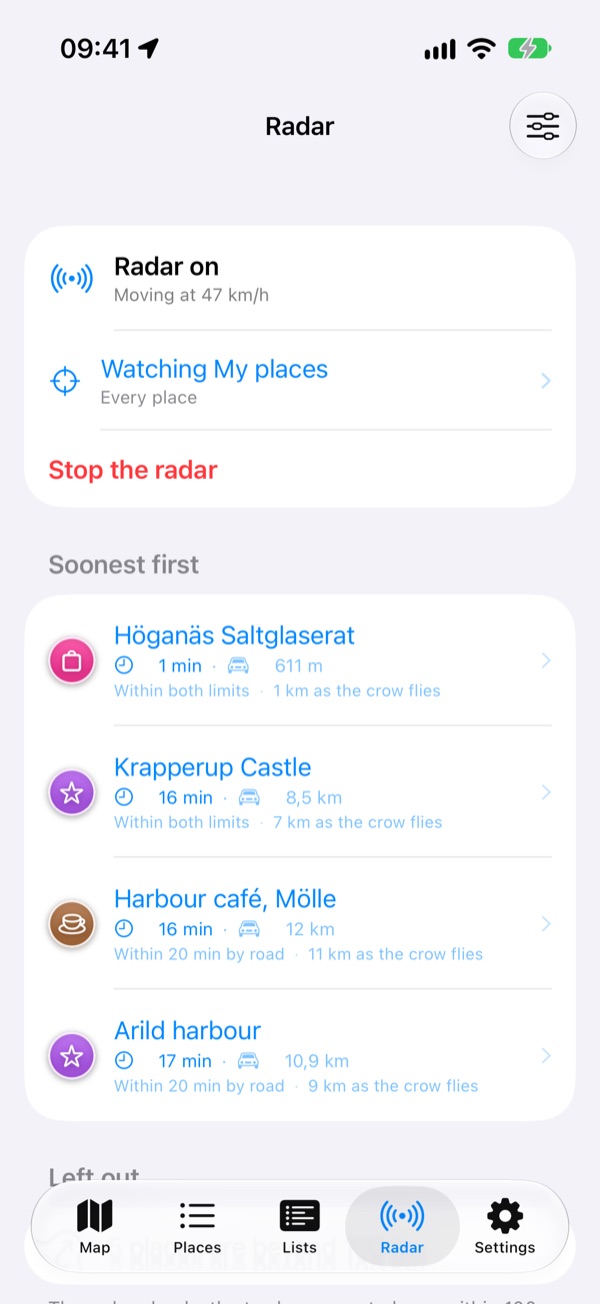
Distances and times are worked out by road, so a place just across a lake doesn't count as close.
What it watches
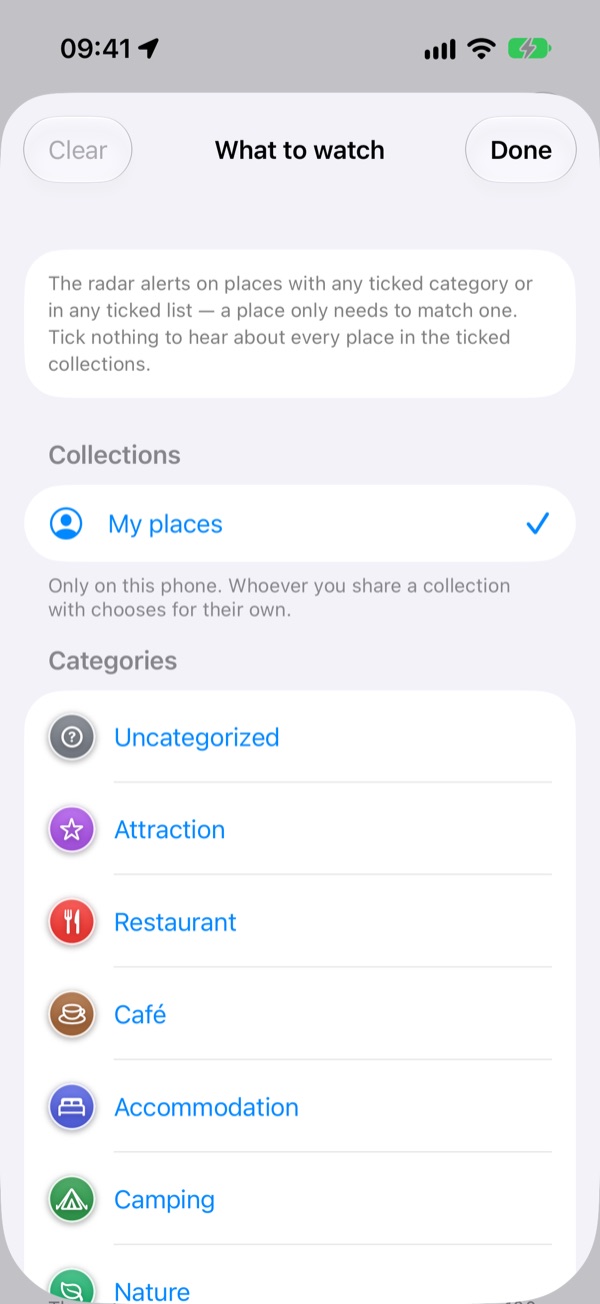
The row above the start button says what the radar is watching. Tap it to choose collections, and within them categories or lists. A place alerts if its category is chosen or it is in a chosen list. This choice is separate from what you're looking at on the map, and each phone keeps its own.
Settings
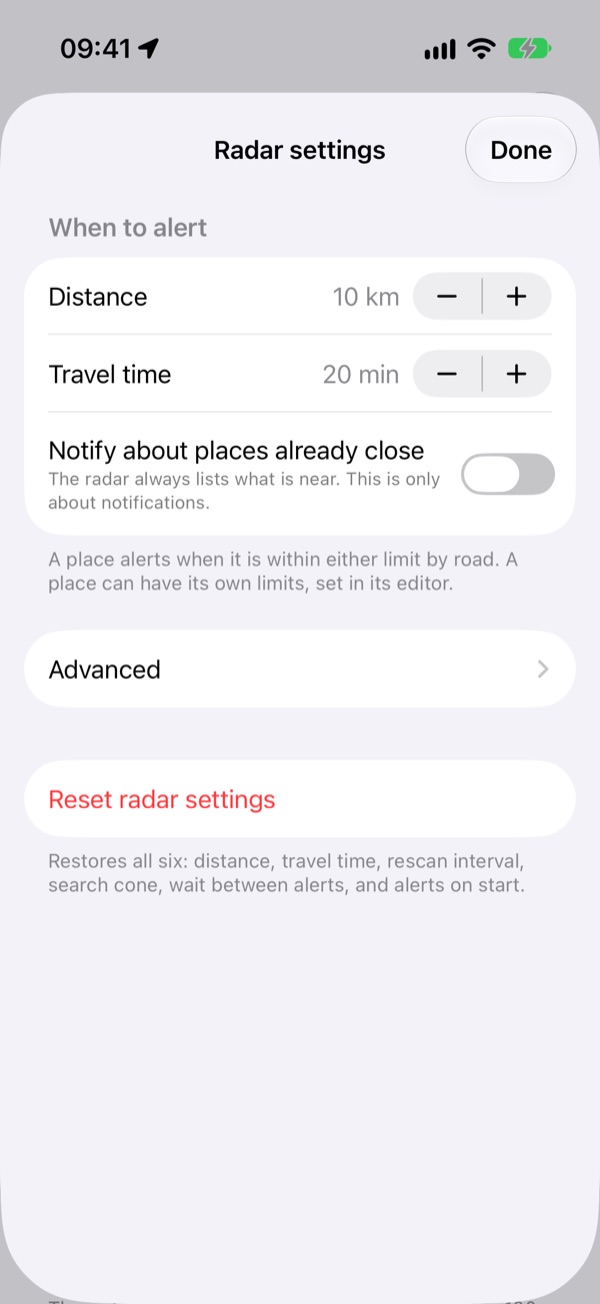
The settings button on the Radar tab has the trigger distance (10 km to start with) and trigger time (20 minutes), and whether places you're already close to should alert when you start. Under Advanced are how often it looks again, how wide a cone ahead it searches, and how long before the same place can alert again.
Things worth knowing
- The radar keeps running with the screen off or another app open, but it stops if iOS closes RoadtripRadar. Start it again then.
- It needs location and notifications. The Radar tab warns if either is off, or if Precise Location is off.
- It keeps finding places with no signal, because your places are stored on the phone.
Settings
- Account: create one, sign out, sync now, or delete the account.
- Permissions: whether location and notifications are on, with a shortcut to change them.
- Backup: export your collection to a file, or import one.
- Your categories: the categories you have made.
- About RoadtripRadar: the version, these pages, and the open-source licences.